Quickstart
Below is a quick guide to get you started with Vibe, for more details see Configuration to learn how to configure Vibe to your needs.
Get Started
Before continuing, make sure you have installed Vibe.
First, navigate to your project's root directory:
cd /path/to/your/projectOnce there, you can run Vibe:
vibe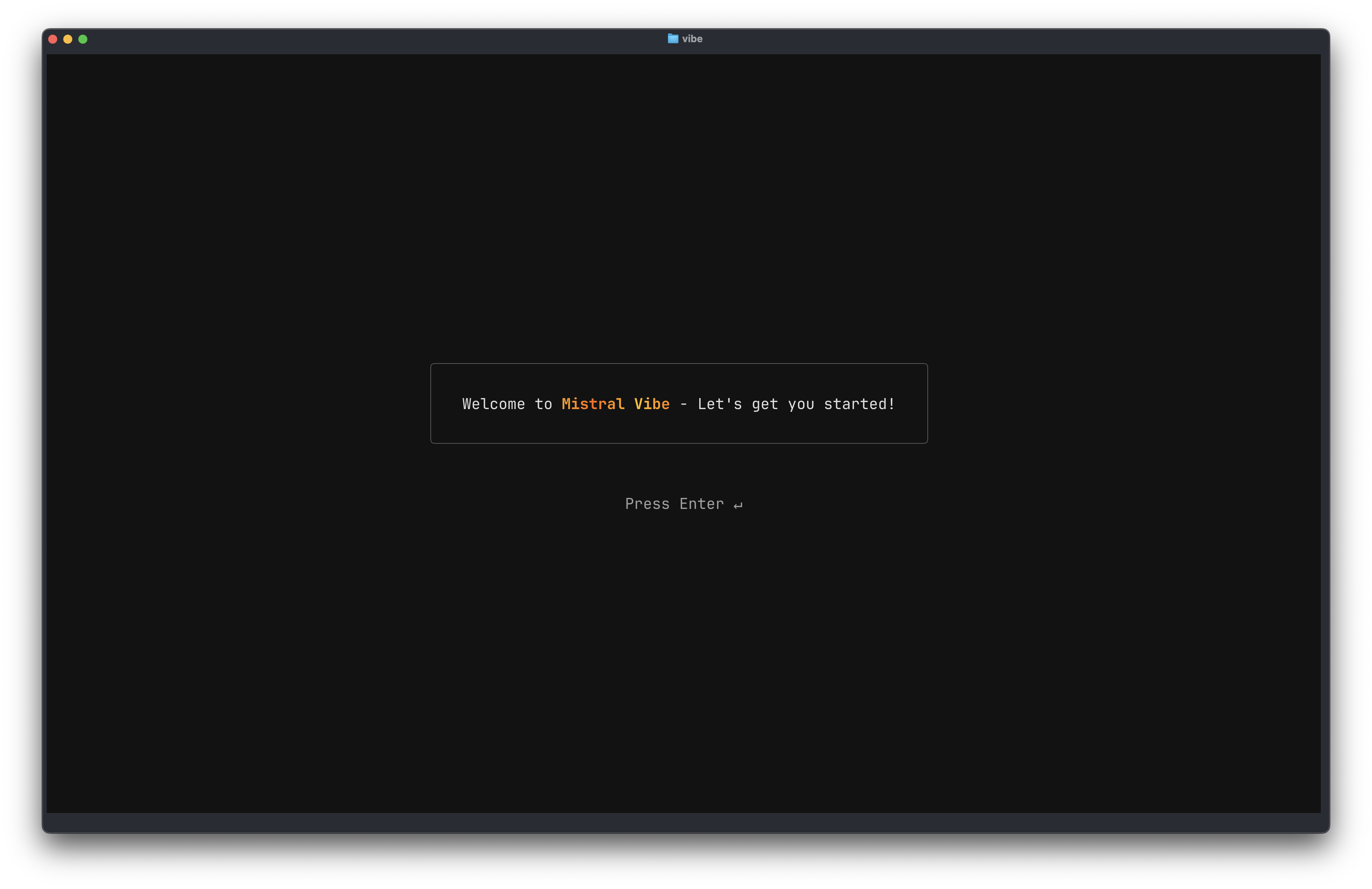
This will start the interactive CLI interface.
If this is your first time running Vibe, it will:
- Create a default configuration file at
~/.vibe/config.toml - Prompt you to pick a theme.
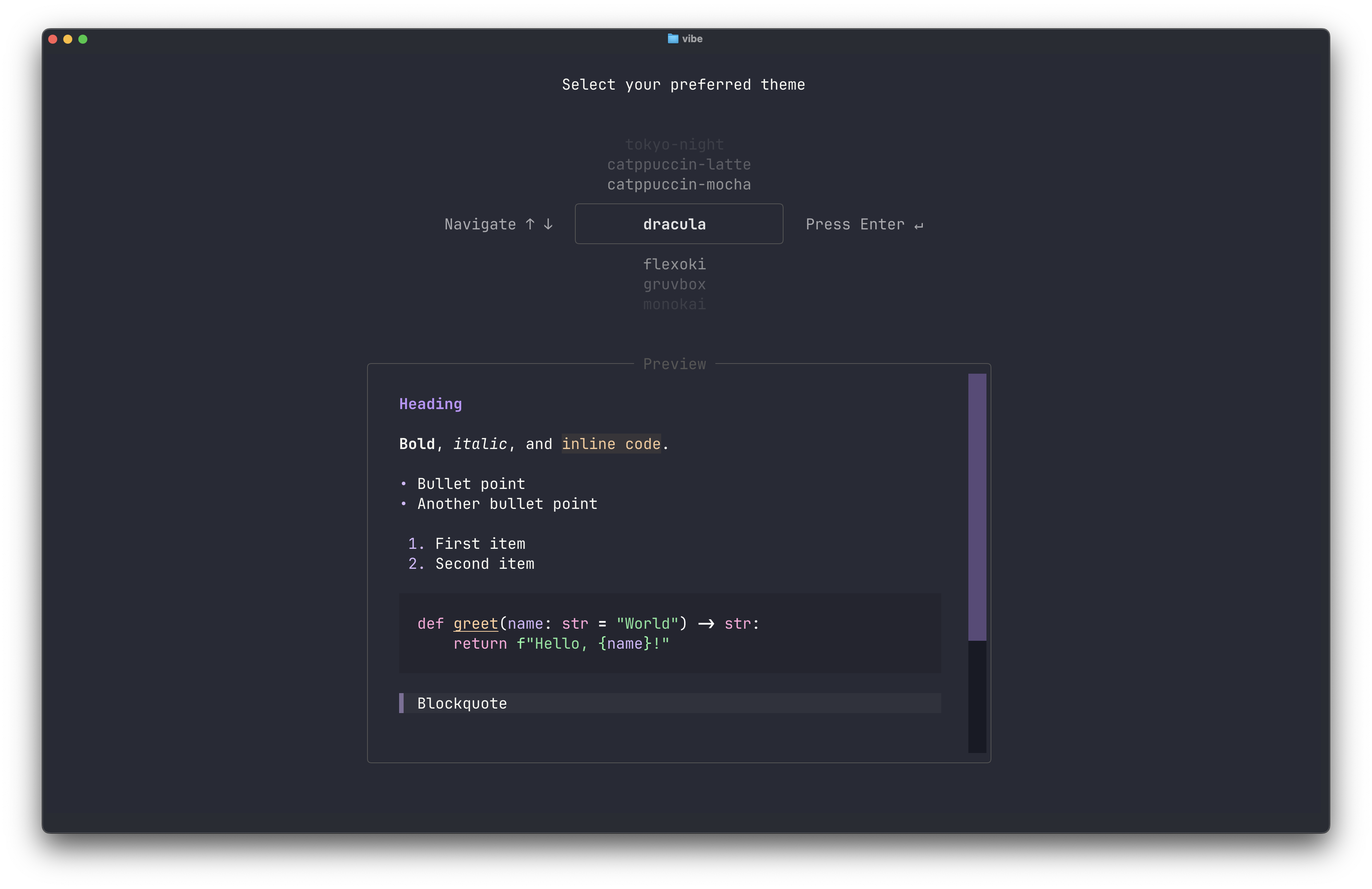
- Prompt you to enter your API key if it's not already configured, you can create one here.
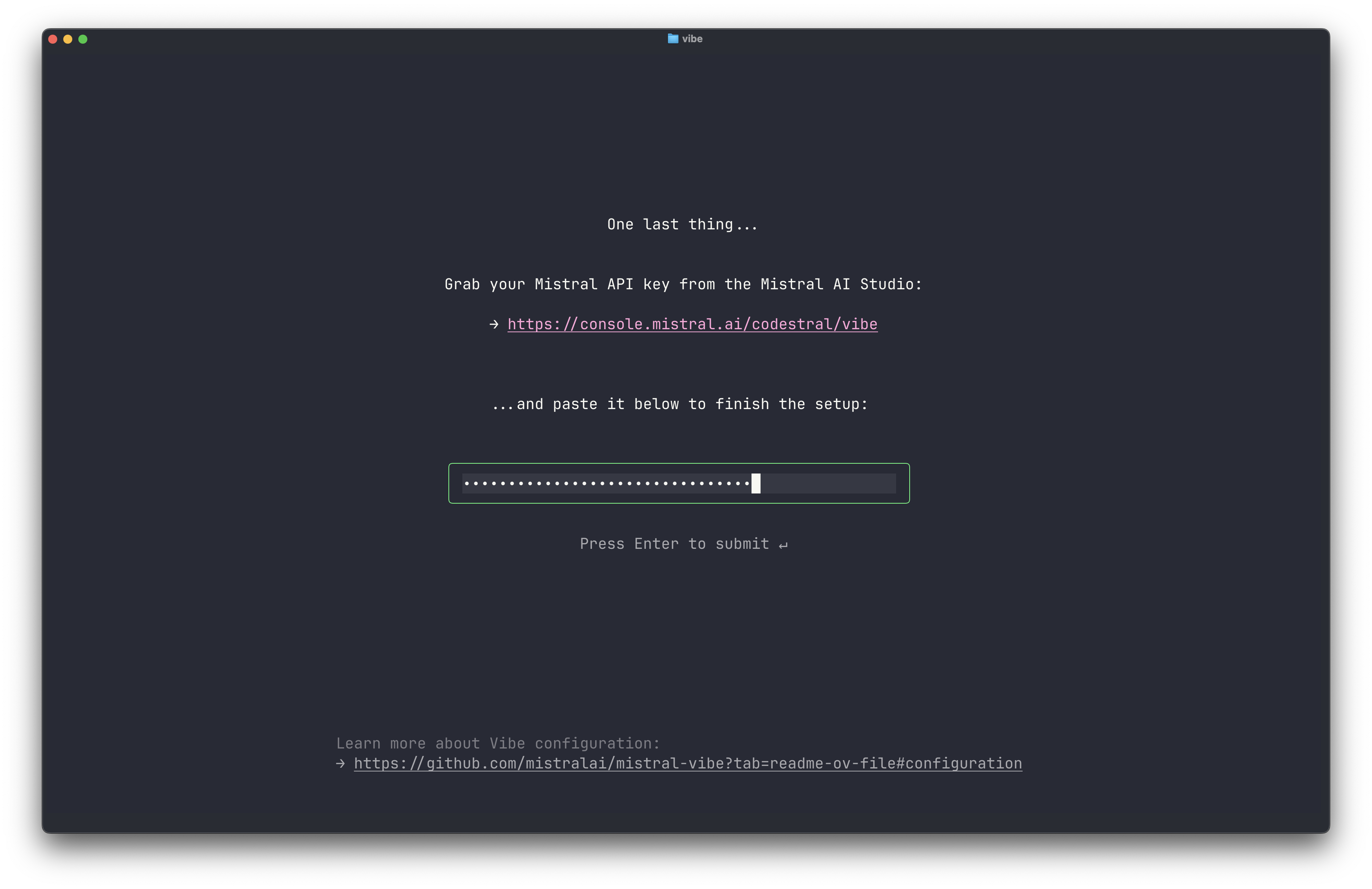
- Save your API key to
~/.vibe/.envfor future use
Alternatively, you can configure your API key separately using vibe --setup.
Once done, you can start interacting with the agent! Currently Vibe by default uses our Devstral 2 model, you can also use Devstral Small 2 or even your own custom model.
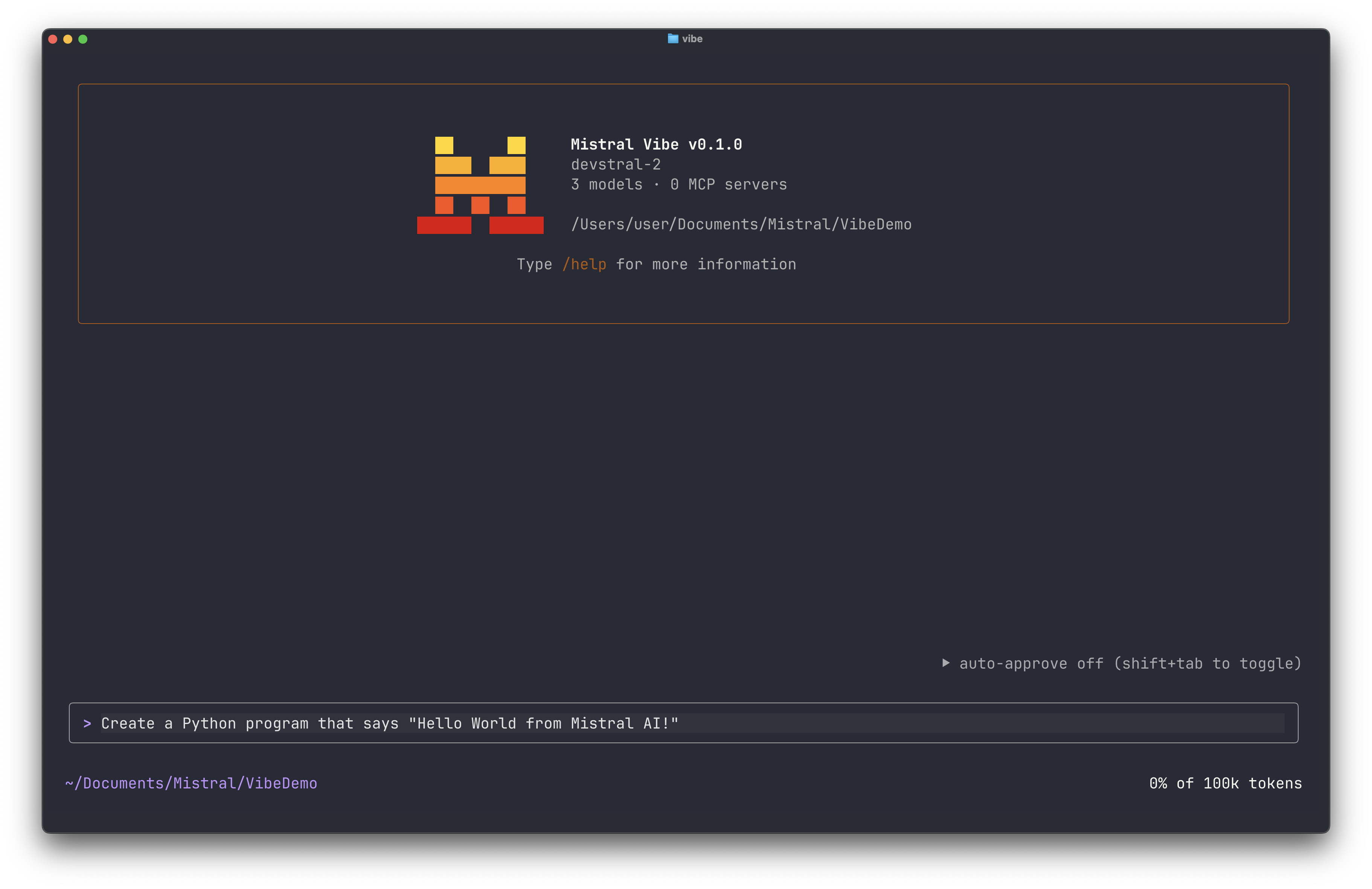
Usage
Learn how to use Vibe
We recommend using Vibe in interactive mode, but you can also use it in programmatic mode, learn more about both below.
Interactive Mode
Simply run vibe to enter the interactive chat loop, this mode simulates a chat interface with the agent.
- Multi-line Input: Press
Ctrl+JorShift+Enterfor select terminals to insert a newline. - File Paths: Reference files in your prompt using the
@symbol for smart autocompletion (e.g.,> Read the file @src/agent.py). - Shell Commands: Prefix any command with
!to execute it directly in your shell, bypassing the agent (e.g.,> !ls -l). - External Editor: Press
Ctrl+Gto edit your current input in an external editor. - Tool Output Toggle: Press
Ctrl+Oto toggle the tool output view. - Todo View Toggle: Press
Ctrl+Tto toggle the todo list view. - Auto-Approve Toggle: Press
Shift+Tabto toggle auto-approve mode on/off.
You can also directly start Vibe with a prompt with the following command:
vibe "Refactor the main function in cli/main.py to be more modular."Vibe also allows you to use slash commands and keyboard shortcuts for meta-actions and configuration changes during a session such as:
/h,/help: Show a help message/config,/theme,/model: Edit configuration settings interactively/clear: Clear conversation history- ...
Ctrl+TToggle todo viewShift+TabToggle auto-approve mode- ...
And more, use
/helpto display all available commands.
Custom Slash Commands
You can define your own slash commands through the skills system. Skills are reusable components that extend Vibe's functionality.
To create a custom slash command:
- Create a skill directory with a
SKILL.mdfile - Set
user-invocable = truein the skill metadata - Define the command logic in your skill
Example skill metadata:
---
name: my-skill
description: My custom skill with slash commands
user-invocable: true
---Learn more about Skills.
Custom slash commands appear in the autocompletion menu alongside built-in commands.
Agent Switching
You can define Agents and change them with Shift+Tab, below you can find a non-exaustive list of agents Vibe is packaged with:
default: The standard default Vibe behavior, built for general usage requesting approval for tool execution.plan: Read-only agent for exploration and planning.auto approve: Automatically approves all tool executions without prompting.- ...
Learn more about Agents.
Trust Folder System Vibe includes a trust folder system to ensure you only run the agent in directories you trust.
Programmatic Mode
You can run Vibe non-interactively by piping input or using the --prompt flag. This is useful for scripting, it allows you to run Vibe in a more streamline manner. This will not enter the interactive chat loop interface.
vibe --prompt "Refactor the main function in cli/main.py to be more modular."By default, it uses auto-approve mode.
When using --prompt, you can specify additional options:
--max-turns N: Limit the maximum number of assistant turns. The session will stop after N turns.--max-price DOLLARS: Set a maximum cost limit in dollars. The session will be interrupted if the cost exceeds this limit.--enabled-tools TOOL: Enable specific tools. In programmatic mode, this disables all other tools. Can be specified multiple times. Supports exact names, glob patterns (e.g.,bash*), or regex withre:prefix (e.g.,re:^serena_.*$).--output FORMAT: Set the output format. Options:text(default): Human-readable text outputjson: All messages as JSON at the endstreaming: Newline-delimited JSON per message
Example:
vibe --prompt "Analyze the codebase" --max-turns 5 --max-price 1.0 --output jsonGuardrails and Permissions
Vibe is built to keep you in control. For substantial tasks (refactors, multi-file updates, cleanups), Vibe splits the work into steps it can execute safely and asks for confirmation before proceeding.
You can also cap the number of steps or set a maximum session cost, and control general permissions and usage in the config file, learn more about Configuration here.
Before editing files or running commands, Vibe shows a full preview and asks for confirmation.
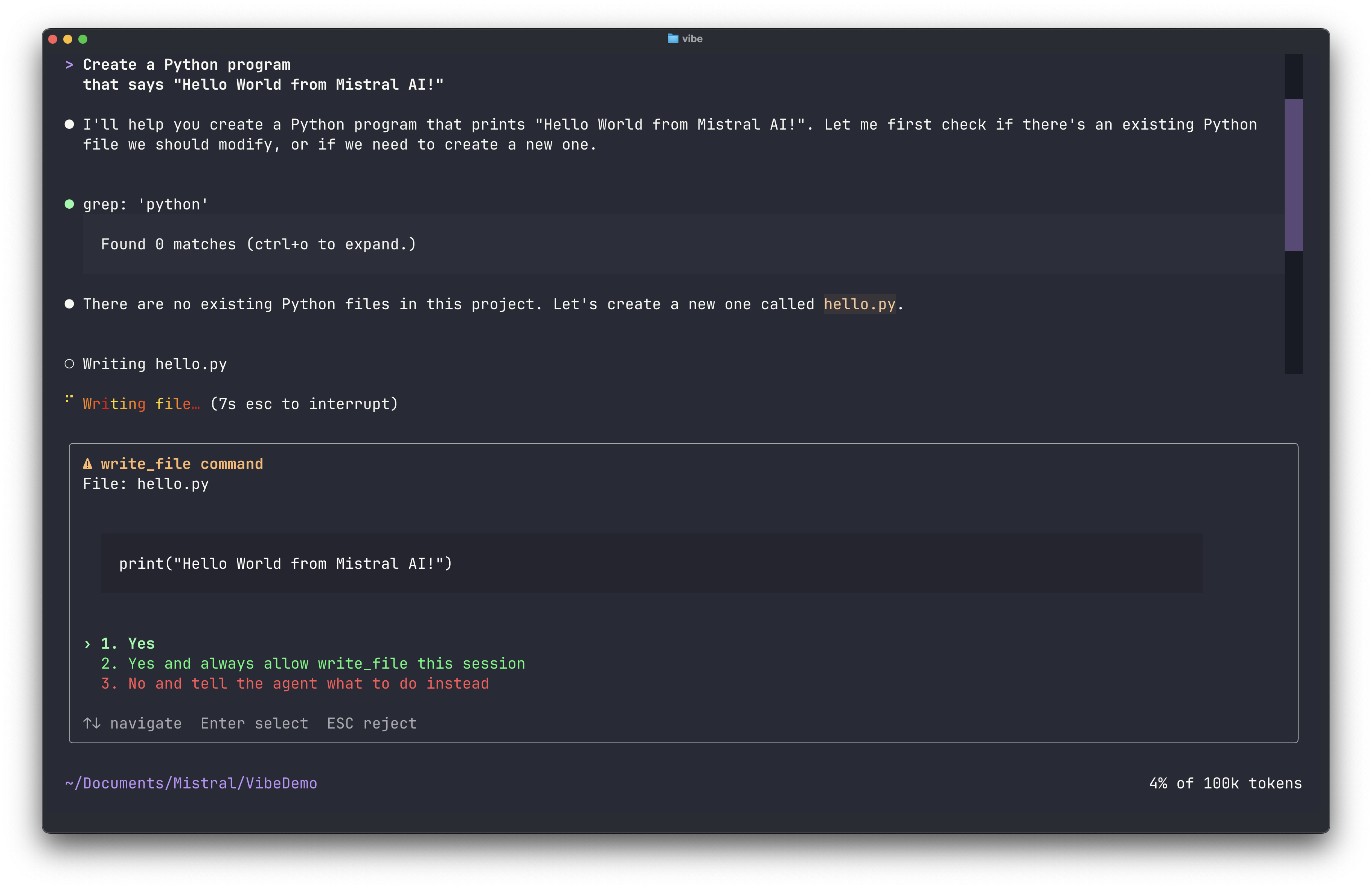
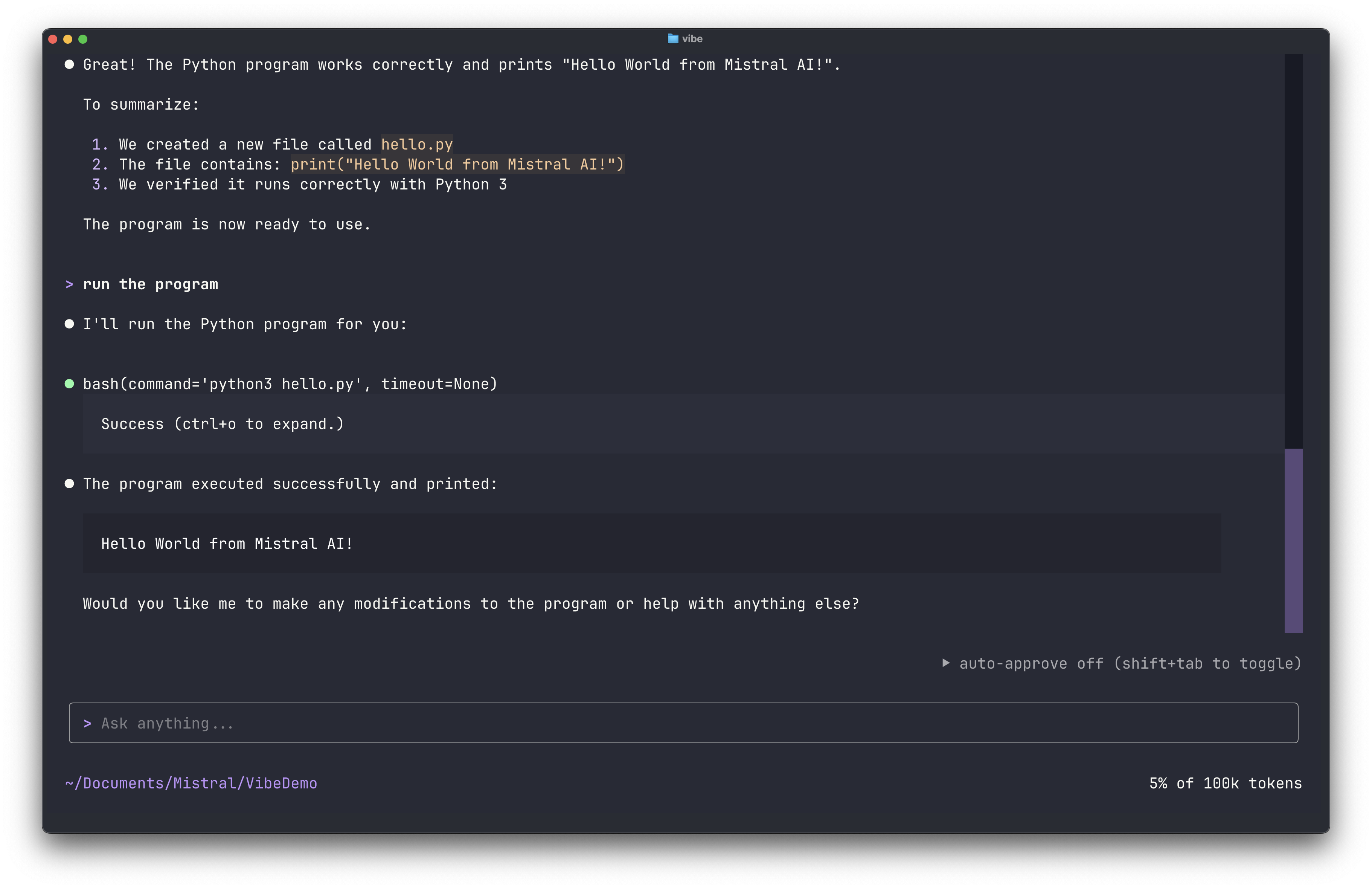
After each step, you see exactly what was executed and the resulting output.
Next steps
You’re ready to use Mistral Vibe in your terminal. Start with small tasks, try the interactive commands, and build up from there.
Need help? Type /help, check the README, reach out on the Mistral Discord, or contact our support team.